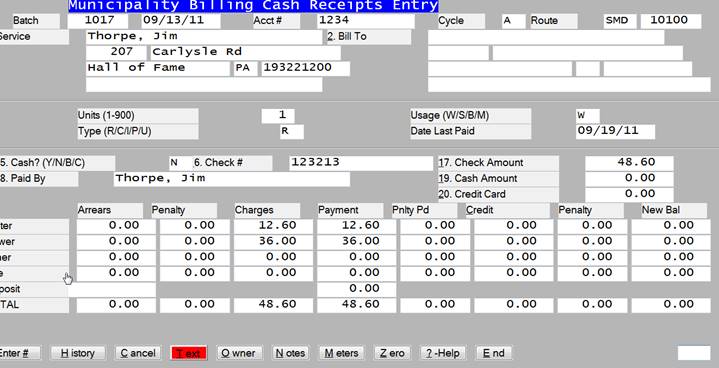
The cash receipts posting takes place daily as a means of recording the checks and cash that were received on that day. Each receipt and it's amount would be entered along with the proper account # and distribution.
|
1. |
Enter the batch # to work on or create a new batch of receipts. On adding a receipt, the date of the receipts will be supplied. Entering A-Add will let you add a new batch. |
|
2. |
Find the customer # from whom the money was received using account #, cycle and route, service name, service address or bill to name. Enter the account # and that will bring up that account and the present billing name and address. If 'CR' is entered then you may enter the customer's name. Any matches on that name will be displayed and the proper customer may be chosen. If 'CR' is entered then you may enter the customer's service address. Any matches on that address will be displayed and the proper customer may be chosen. If 'CR' is entered then you may enter the bill to name. Any matches on that name will be displayed and the proper customer may be chosen. |
|
3. |
If a check already is on file for that customer in the batch you are working on, you may edit that check or enter a new one. |
|
4. |
Enter the form of payment and enter a check # if applicable. Entering a ‘B’ would indicate a payment by both check and cash. Enter the received from name if applicable. |
|
5. |
Enter the amount of cash received as cash, check or both. The system will default to the current balance. |
|
6. |
If the amount entered is equal to the balance, then the system automatically applies that amount and shows the new balance as $0.00. |
|
7. |
If the amount entered is not equal to the balance, then enter the amounts to apply on the payment line. The system will then calculate the new balance. |
|
8. |
If the amount entered is less than the amount owed, the computer will prompt 'Apportion Y/N'. If you answer ‘Y’ then the cash will be apportioned between the water and sewer balance according to the rules supplied by you to AMS. |
|
9. |
If you enter an 'H' then an entry may be added to the credit history file. |