At fiscal year end, normally a store will be required to report the total cost of inventory as of December 31 (or end of fiscal year if not a calendar year). Following is how to print a report, adjust the cost value, and audit the items in the store.
Reporting the total cost of inventory at year end
Use the A > E - Inventory Display / Print routine and set fields:
Field # |
Field Name |
Suggested Setting |
|---|---|---|
1 |
Format |
T (Total) |
3 |
Display or Print |
P (Print) |
12 |
Quantity (low) |
1 (At least one item) |
Push Enter to run the report. This will produce a report that looks like this:
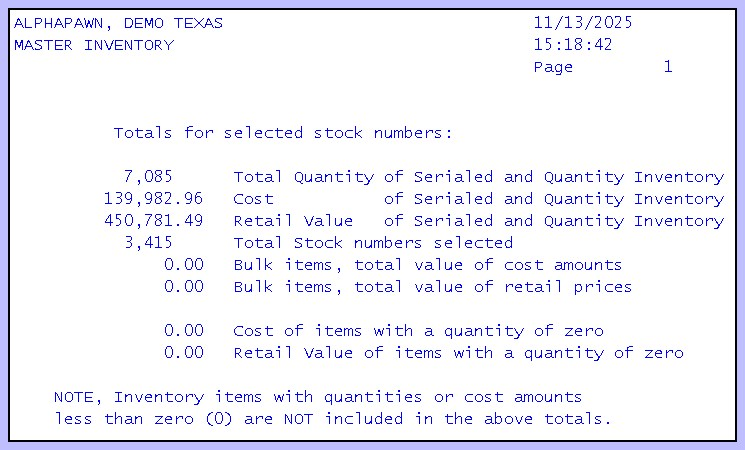
Inventory Report
Adjustments to cost of inventory at year end.
If the total inventory cost report above is not run on the exact end of year date. The cost may need to be adjusted by adding back in items sold, and subtracting out purchases and loans pulled. In order to understand the calculation, the following instructions will use the dates December 31 as end of year, and the date run of the report as January 23.
Start with the cost of inventory from the report above on the date run January 23 and then:
1.Subtract any loans that were pulled between Dec 31 and Jan 23
2.Subtract any Purchases that were pulled between Dec 31 and Jan 23
3.Add cost of sales for all sales and layaways paid between Dec 31 and Jan 23
4.Subtract the cost of any items of inventory that were scraped or stolen Dec 31 and Jan 23
5.Subtract the cost of any items that were taken for a police hold from inventory for sale during the period Dec 31 and Jan 23
Taking a physical audit of all items on the floor for sale
In order to audit inventory in a store, a suggested method is to audit one range of categories at a time. Use Inventory Display / Print and print a report of all items in a category range. For example, if televisions and stereo equipment start with category 380 and end with 460 then:
Use the A > E - Inventory Display / Print routine and set fields:
Field # |
Field Name |
Suggested Setting |
|---|---|---|
1 |
Format |
B (brief) |
2 |
Sequence |
C (by category) |
3 |
Display or Print |
P (print) |
4 |
Stock No (start |
1000 (do not select bulk stock numbers) |
6 |
Category (start) |
380 (start with televisions) |
7 |
Category (end) |
460 (end with stereo equipment) |
12 |
Quantity (low) |
1 (At least one item) |
Push Enter to run the report.
Take the printed report and use it as a check list for the items on the floor for sale. A suggested method is to take a pink or yellow highlighter and make a mark on the stock tag and on the report as it is found. After going through all the items on the report, the items on the floor without a pink mark are NOT in the APS inventory and will need to be added. Any items on the computer printout that are not found can be assumed to be stolen, and should be subtracted from inventory by changing the quantity in Inventory Maintenance to a 0 ( zero).