To start AlphaPawn, double click the APS icon that is on the Windows desktop or Start Menu. This will start APS and display the Master Menu as shown below.
The bright green letters refer to the portions of the screen where two programs are running.
A - APS. The bottom 90% of the screen is the APS work area. All subsequent screen pictures in this document show only this part of the screen, and all your menu selections, reports, displays, etc., will occur in this space.
B - A-Shell. The top 10% of the screen is showing A-Shell. A-Shell is a "container" or "middle ware" program that allows APS to run under Windows. Under normal circumstances, you will not need or use any of the menu bar options shown in this part of the screen. If interested, you can read more about A-Shell in Appendix R.
Select a sub-menu from the main APS menu by pressing a lettered key ("A" for "Daily Busines," etc.).
The single letter keys act like function keys so once the letter is pressed there is no need to press the Enter key. In the manual and release notes are references to specific menu selections and/or field numbers. If a reference is made saying type: C > A that means from the Master Menu enter a "C" that will display the Inventory menu, then the "A" will start the Inventory Maintenance routine. Another example might be to access the store parameters fields so the reference might be: E > A > RETurn > G > 18, read this as enter from the master menu an "E", an "A", then the RETurn key, then "G", then 18. This will access the data field Fiscal year beginning month and day field.
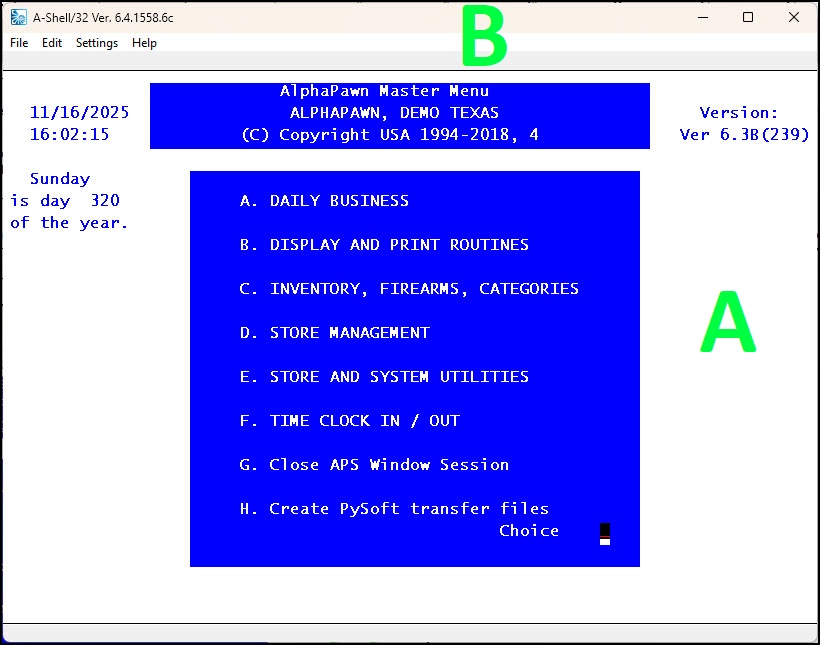
APS Main Menu