Gary wrote the following to Jack McGregor at MicroSabio, the new support firm for APS, in January 2025.
Subject: A quick overall intro to printing labels in APS.
There are two type of stock labels that may be printed: standard 3.5x1, and jewelry tags. All labels are based on the category of the inventory item. In C > D - Category maintenance field 5 “Type of label” says Standard, Jewelry, or No labels. When loans drop or purchases/buys are pulled the items go to C > F – Receipt for inventory, where the item can be edited before putting it on the shelf out front for sale and optionally printing a stock label. After editing the next step is to run H. Receipts update to Inventory. At that time label files are created on disk, the pawnbroker may only print labels once a week. That is because they used to print on their dot matrix Okidatas with continuous labels. Then “I.” Print Labels is run to print standard and jewelry labels. “K” erases the labels on disk.
The other menu selection that is label related is “M.” Stock tags for current inventory. The stock labels “fall” off the item and the customer will then carry the item to the counter knowing that the suggested price is 79.99 and ask how much is this item? The clerk can’t find the label and says oh, you can have it for $35.00. The customer buys it. So, a lot of shops print two stock labels and put one on top and another hidden on the bottom of the item.
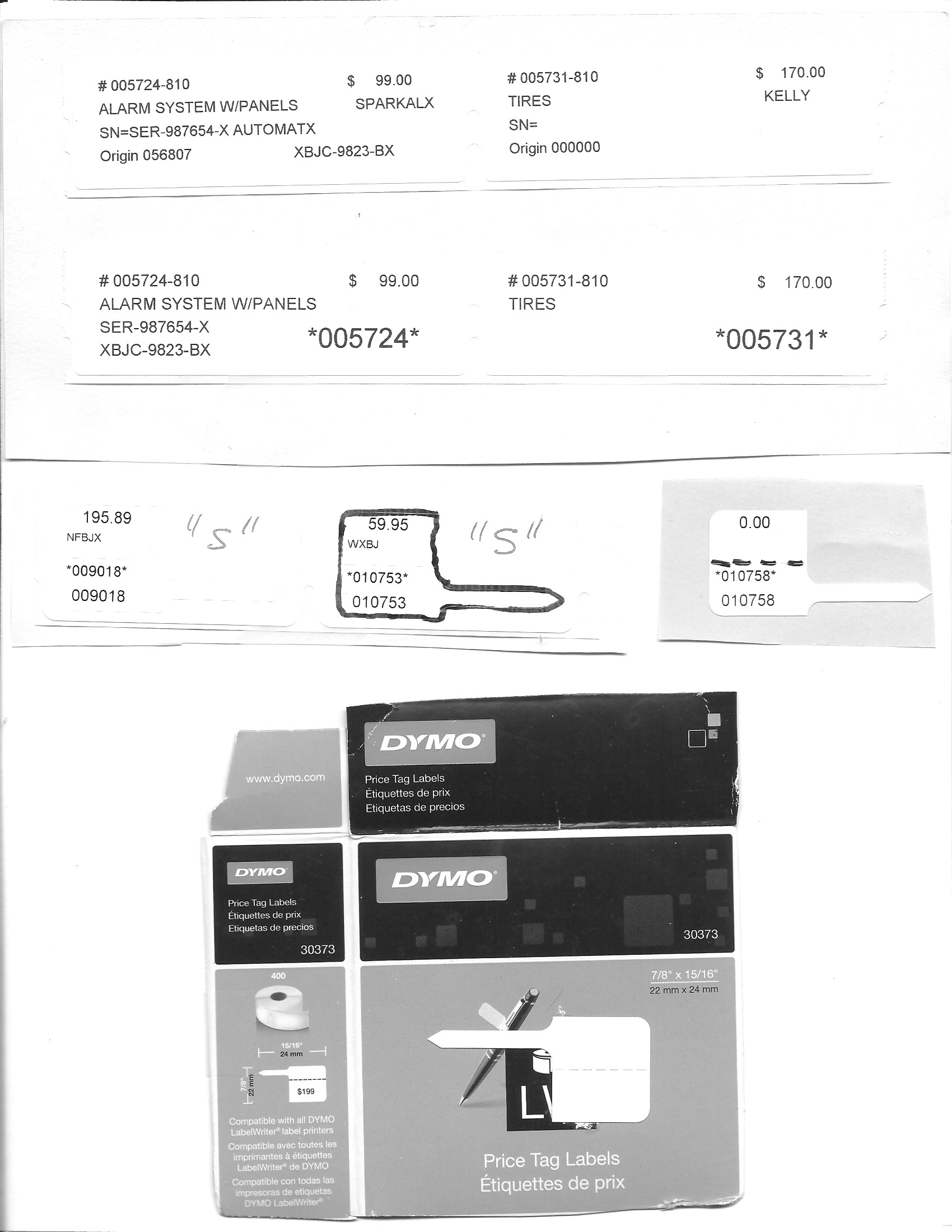
The samples that I have attached show: a standard label, a standard label with bar codes, and a jewelry tag with bar codes; see image below. A lot of stores “had to have bar coded labels”, so I implemented them using, I believe, the 5by9 font. I got it working, but then the stores were two cheap to buy a scanner and would just hand type the stock number. My computer does not have the 5by9 font and so it prints the stock number with leading and trailing “*”.
The jewelry tag is for small stuff like rings, the rat tail that sticks out to the right is meant to go through the ring and then the flap is folded over the tail and holds it. Look at the 3rd jewelry tag you will see where I put a dashed black line. That is the fold line, dummy data says this item is for sale for “0.00” that’s wrong the other two have real prices. The stock number is 10758. On the second jewelry label is “WXBJ”, that is a sale code that the store puts on the tag to help the sales person know what the cost or bottom sale price is. In this store example the W might be a “4” the X means “5”, and the B and J mean zero. So the bottom price/or cost would be 45.00. I’m getting a little deep here sorry.
So how to turn on printers. In the manual, Section APS 130 printers, discusses DYMO’s and the Dymo forms: 30252 is the standard label, and 30373 is the jewelry tags.
The standard labels are turned on in: E > A <ret> A – Field 28 Labels. The printer DYMBBR should have a PQI associated.
The Jewelry labels are turned on in: E > A <ret> G -Field 27 Jewelry “S”. The selections for “B” and “2” are old versions and probably should be taken out. They printed on form 30299.
BTW, when the DYMO 450 software is downloading it includes a label printer program. I print on the big labels and use them for binder labels, drawer labels, and tools in the