This topic attempts to describe the entire APS printing system, as might be told to somebody who is not familiar with it. It is being written by Ty Griffin in December 2025, following a reasonably through reading of the scattered printer-related material in this document combined with some conversations with the developer of APS, Gary Guilbert.
Notes
| • | The term PtrDef, an abbreviation of "Printer Definition," is used to specify the virtual printer being printed to. It is not an actual printer, but instead the name of a PQI file where the actual printer name and some printer control characteristics are specified. |
| • | To quickly and easily print a test report, generate the Store Activity Recap Report (D, J) and use the defaults. |
Report Classes and Printers
There are three classes of printed output in APS, and each report in the system (a) is one of these, and (b) prints to the PtrDef specified for this class of report.
| • | Point of Sale (POS) printings |
| • | Reports |
| • | Forms: Pawn Tickets, Labels, ATF Form 4473 |
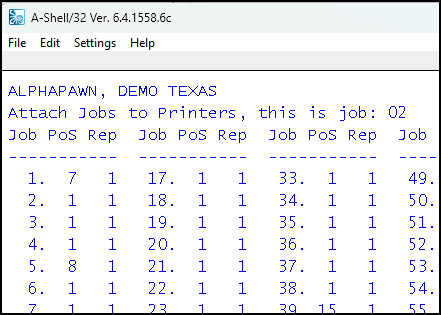
The PoS and Reports PtrDef numbers are specified in the Attach Jobs to Printer screen (E, L).
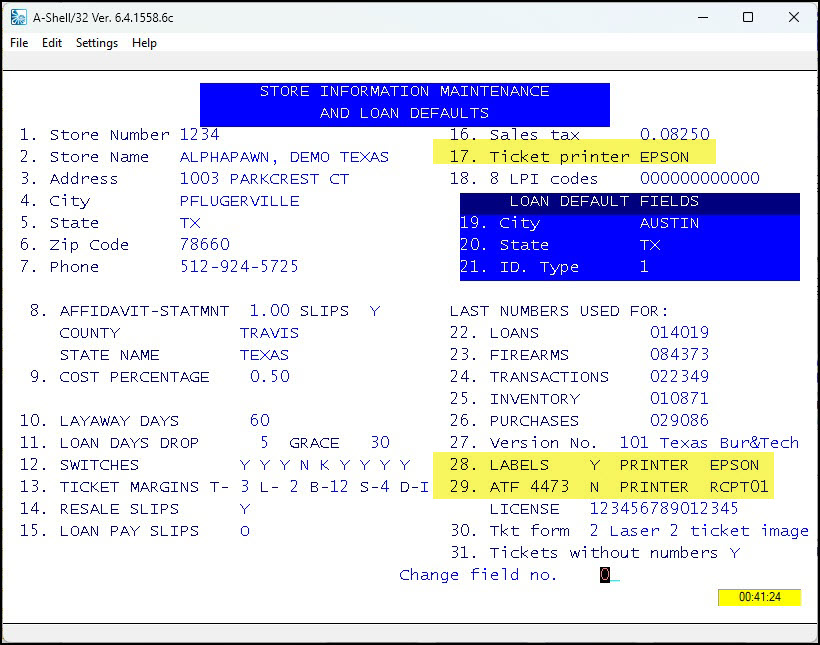
The Forms PtrDef names are specified on the Store Information Maintenance and Loan Defaults screen (E, A, A). Note that APS permits only one PtrDef for each type of form per APS installation—i.e., all pawn tickets, for example, are printed on the same printer. The same applies to the labels and ATF forms.
Job Management
When a user logs into APS, APS captures the A-Shell-assigned job number and therefore knows that this particular user is job number x. This is important because where the reports are printed is determined by this job—i.e., this physical PC and its location.
Flow of Information
Here is a simplfied series of steps (and the author's understanding) of what happens when a report is printed:
| 1. | The user tells APS to print something. |
| 2. | APS determines the report class for this particular printing: PoS or Report or Form. |
| 3a. | If form, APS looks at the Store Info... data and gets the name of the PtrDef for this particular form—i.e., pawn ticket, label, or ATF 4474. Go to step #5. |
| 3b. | If PoS or Report, APS looks at the Attach Jobs to Printer data and determines the target PtrDef number. |
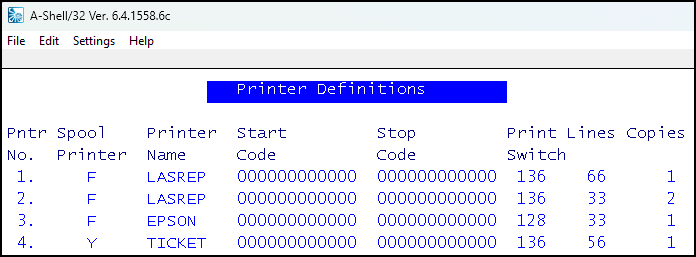
| 4. | (PoS & Report only) APS looks up target PtrDef number in the Printer Definitions (E, A, C) data and gets the name of the target PtrDef. |
| 5. | For all classes of reports, APS now has the name of the target PtrDef. |
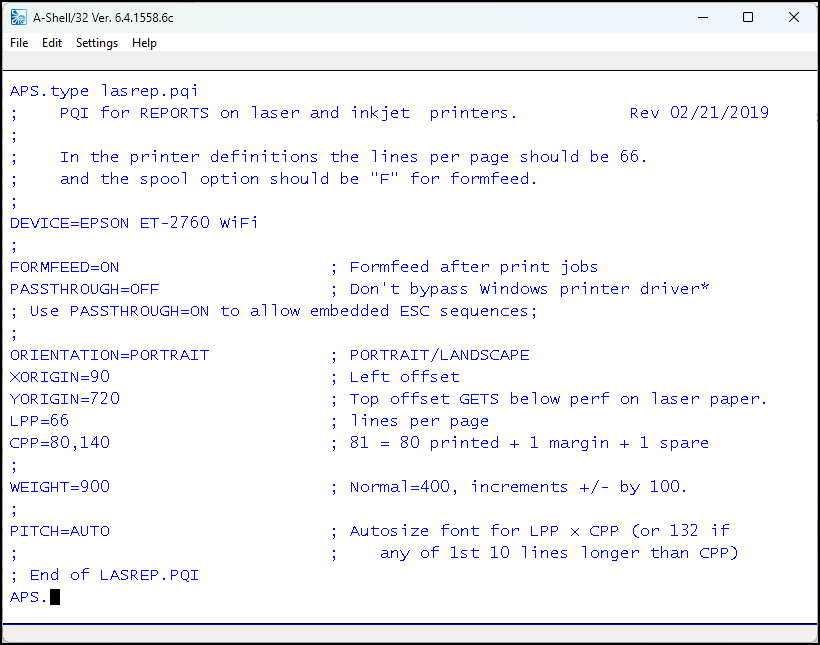
| 6. | Now that the report has a specified PtrDef, and that PtrDef name corresponds to the name of a PQI file, the printer specifications in the PQI file are used to deliver the report to the specified physical (Windows) printer. |
| 7. | To see the contents of the PQI file, "abc.pqi" in this example, get to the A-Shell prompt and enter: TYPE ABC.PQI[1,7] <return>. |
Other Related Information
To determine the PtrDef to which a report is being sent, get to the A-Shell prompt and enter SET TRACE LP ON. After you try to print a report, the A-Shell Trace window will pop up and show you the name of the printer in question. You can also use SET TRACE XCALL ON, which will show the arguments passed to the SPOOL subroutine which is used by APS for printing.
Attach Jobs to Printers Screen