The Inventory Display/Print program is very useful for a store employee to quickly search for items and know if an item is in stock. It is a feature of the system that if used often enough becomes a very important selling tool. This is the reason that inventory display/print is in the daily business menu. Inventory Display/Print works in the same way as all other display/prints with its use of parameters to narrow down the type of item required. By using the category code selection field, and changing field 2 Sequence Order to a “C”, and changing field 12 minimum quantity to 1, the routine will immediately display items that are for sale. This enables an employee the ability to answer on the phone a question for a particular type of item. The selection fields: Color, Model, Manufacturer either do an exact match for their entry or by using the asterisk “*”, will match a partial entry. For example if the manufacturer field is entered as “MAG*”, then it will find all stock numbers that include a manufacturer field that contains any of these examples: MAG, MAGV, MAGX, MAGGINVOX. Read the section in Chapter 7 on efficient system use, to understand how to speed up searches.
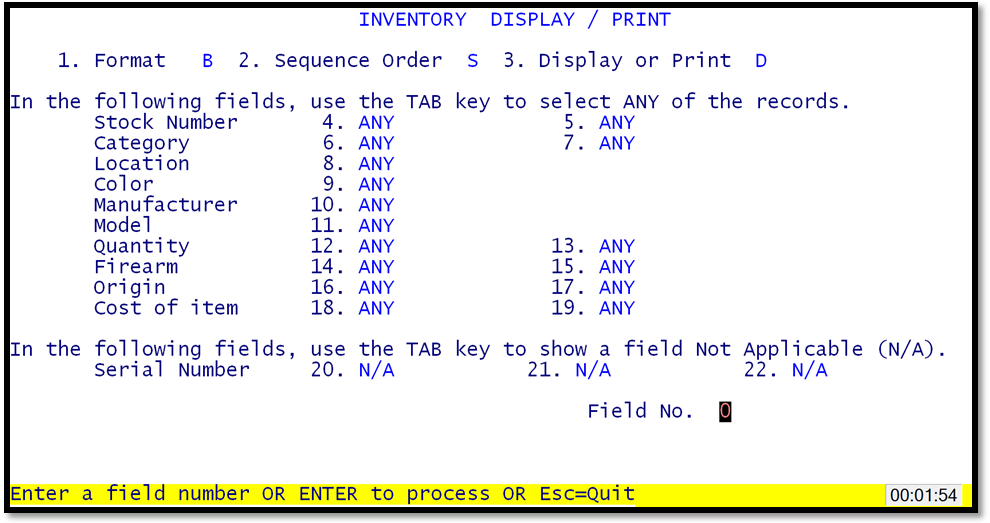
The inventory selection fields are either ranges of low to high numbers or specific matches. A stock number range from starting/low to ending/high is entered in fields 4 and 5. An exact match may be entered in the color, manufacturer, and model fields. In addition a partial match may be entered. For example, if the manufacturer field is filled with MAGNAVOX, then entries such as: MAGVX, MAGNAX, MAGVOX would NOT be found. In order to find ALL of the entries enter a partial manufacturer (or Model or Color) and type the asterisk "*" after the entry; for example "MAG*" or "M*".