This routine will summarize all loans selected and give a statistical report of loans based on the status code and the dollar amount of the loan. There are two sections on the input screen. The first is the loan select fields. These fields are typical ranges and employee options. The second section is the output format.
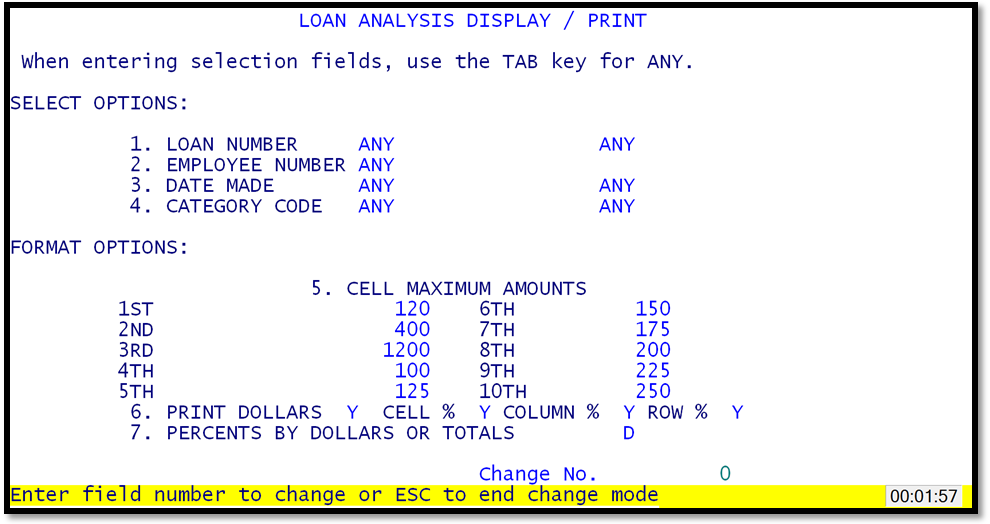
Loan Analysis Display/Print
The second section of the screen is the output options. The system defaults to some standard dollar ranges for the cells. These may be modified as needed. There is a maximum of 10 row dollar ranges. All do not have to be used. For example, instead of 10 rows of numbers only three were desired in the ranges 0-100, 101-200, 201-300. Change the first three cell amounts to 100, 200, 300. The key concept to understand is that the loan information is added to the first dollar cell that fits the dollar ranges. In this example if a loan were for $85, it would be put in the first row because the low and high range is 0 and 100 dollars. If a loan were made for $350 the amount would NOT be selected because the next row range after 300 is from 301 thru 100, which is not logical. If a row does not have any entries then the complete row is not printed.
The other print options are to print the various percentages, enter a "Y" or "N" as required. If the output is displayed a prompt will ask if the table is to be printed. This allows the operator to enter various selections and finally get the report required and then print it.
The displayed numerical table is a cross-tabulation of loans status codes across the top and dollar loan amounts on the left side. This creates a matrix of cells. In each cell is the total number of loans, the total dollar value, the cell percent, column percent, and the row percent. Following is a sample table and an explanation of how to read it. Remember, that the summary table is of the loans 'selected'.
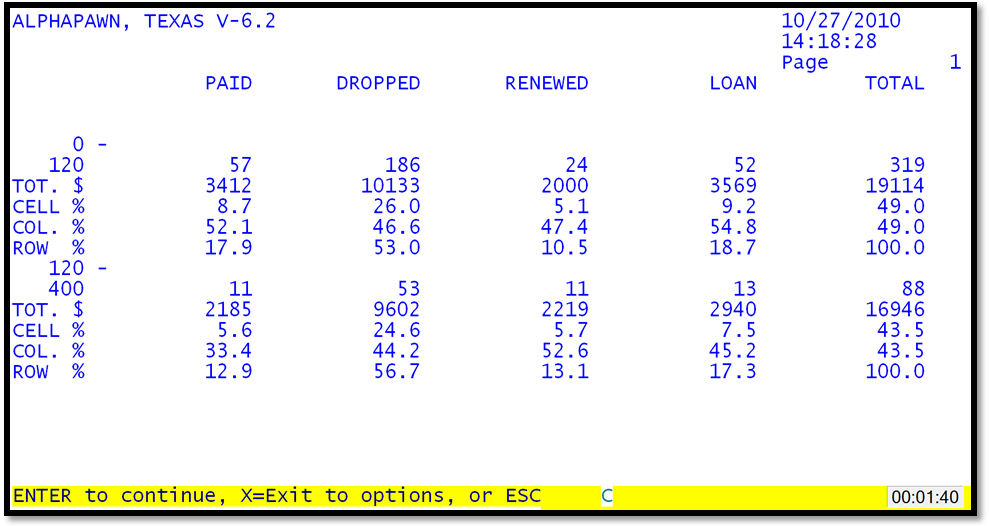
Loan Analysis
The row across the top is the column labels by loan status codes. The "0 - 25" says that the first row is a summary of loans selected with amounts in the range of 0-25 dollars. The second row is all loans in the range 25-50 dollars. On the far right column and on the bottom row is a totals column and row.
In the first cell, will be all totals of loans made between 0 - 25 dollars and have been paid (status code "P"). There are four (4) loans paid. The total value of these loans is 80 dollars. The "CELL %" is 33.3, which means of all the loans selected, "12", there were 4/12 in this cell. In the bottom right corner is the total number of loans, "12". The "COL. %" is 66.7%, this means of all the loans selected 4/6 of the loans paid were in the 0-25 dollar range. In the bottom row totals the "PAID" column is a "6", the total of all paid loans. The "ROW %" is 80.0%. This means that 4/5 of the loans in the 0-25 dollar range have been paid. In the totals column is the number "5" saying that there were 5 loans in the 0 - 25 dollar range.
Note in the row totals there is always a row of 100.0 percents in the column percents. Also in the column totals the row percents will always be 100.0 percent.
Some practical examples of questions that can be answered with this routine are: 1) does employee 123 have a larger drop percentage than employee 456, if so, then help certain employees in setting their loan amounts, 2) do large items, TVs, heavy equipment have a higher drop rate than small items, if so, adjust loan amounts accordingly. 3) do loans made in June for tools get redeemed better than loans made in November.