1. STORE NUMBER A unique number which allows more than one store to use the same computer system. This number will identify each store when summary reports are printed at the home office of a multi- store pawnshop chain.
2. STORE NAME The name of the store, to be printed on reports, displays, and sales slips.
3. ADDRESS Street address of the store.
4 CITY City of the store.
5. STATE State of the store.
6. ZIP CODE Zip code of the store (5 digits).
7. PHONE Phone number of the store, this will print on the pawn ticket. So enter the phone number exactly as it is to be printed, typically in a ###-###-#### format.
8. AFFIDAVIT-STATEMENT Enter the amount that the state allows for an affidavit charge. The "SLIPS" field is to designate whether affidavit slips are to be printed on the printer when a pledgor has lost his loan ticket. Reply either a "Y" for yes, or a "N" for no. If the reply is "Y" then the following fields for COUNTY and STATE must be entered.
9. COST PERCENTAGE This percentage field defines what percent of a bulk sale is the cost of the item. This percentage is used to decrease the value of bulk inventory when a bulk sale is made. If for example the percentage were set to 0.70 then if a sale of a bulk item, such as a wrench, were made for $3.00, the bulk inventory value would be decreased by $2.10.
10. LAYAWAY DAYS the default number of days for layaways. The system will automatically compute the date that the layaway is due. At the time the layaway is made, or a payment is made the date can be changed.
| 11. LOAN DROP DAYS | this parameter tells the automatic drop routine the minimum number of days that a loan is still valid. In most states there is only one value the number of days to hold the loan before dropping (pulling) it. In Texas there are two parameters, the number of drop days, which is the days after the last day of grace; and the number of grace days which is the number of days from the maturity date until the drop day. |
| 12. SWITCHES | This field contains options that are used to customize a store's installation. As each option is selected, a display message will show on the bottom of the screen. |
Store still converting, manual to computer, Y=YES, N=NO
If the option is Yes, then when a new loan is being created, the routine will stop at the Original Loan field to allow an original loan number to be entered in case the new loan is a renewal of an existing loan.
| There will be an additional menu selection on the Store Management menu that is used to enter the redemption of any manual tickets during the transition from manual to computer use: |
| Manual Loan Entry |
Print loan memos of extension - Y=Yes, N=No
Does this store allow loans to be extended in addition to being renewed? An extended loan has the maturity date move forward. A Renewed loan prints a new pawn ticket.
During a purchase transaction, should a stock label be printed
'NOW' create stock label, Y=Yes N=No, O=Optional at the purchase
When a purchase is made is a stock label to be created? Some stores have their own method for stock labels and set this to No.
Enter the cost of each item when making a loan, Y=Yes N=No
This option allows the total amount of a loan to be distributed across all the items in the loan. The routine will request a dollar amount for each item. The cost can be entered and/or adjusted if the loan is dropped (pulled).
During Sales, allow sales to CASH$?
Y=Yes, N=No, K=Keep CASH$ sales.
This option lets the operator make sales to the customer named CASH$. This is useful for those sales that do not need to have a permanent record made of the transaction. If the last name is CASH$ then the other name and address fields are skipped and there is no record made in the sales file for the transaction. The Keep option writes a record in the sales file even when the sale is made to CASH$.
During Sales Allow for bulk items, Y=Yes, N=No
This option assures that all items sold are from inventory and have a stock number. If the field is Yes then a sale may be made to an item without a stock number, yet has a category number equal to a stock number. These bulk stock items range from 001 through 899. It is not logical to have a bulk firearm category. If the field is No, then all sales must be to items with stock numbers greater than 1000.
Display and optional allow modification of the Cost of an item during a sales
Y=Yes, N=No, Modify: B=Bulk, A=All sales.
This option has four possible values. Yes, displays the cost of an item during a sale. No, does not display the cost of the item. The next two options display the cost of the item and then may allow modification of the value. Bulk, says that the cost of bulk items may be changed. All, says that all cost fields may be modified during the sale.
Print loan items on extension payment, Yes No.
The loan items may be printed on the extension payment receipts. This helps the customers keep track of which items are on which loans. If there is enough room to print all the loan items, then the words “* ALL ITEMS”, will be printed at the end of the item list.
Print time card log IN/OUT slips, Yes, No
When an employee is clocking in or out, this selection will print for the employee a time card slip that they may keep for their records.
13. TICKET MARGINS
The ticket margins parameter is used to let the program and printer adjust to minor printed discrepancies on the preprinted pawn tickets. The three options are top T, left L, and bottom B. The top and bottom numbers are the number of extra blank lines to be printed before and after the ticket. The left margin is the number of extra blanks to be printed before the line is printed. This effectively moves the entire line right. The last two options designate whether the name and optionally the loan items are to be printed on the top stub of the ticket. A maximum of four lines will be printed, if there is not enough room for all the items, only part of the items will print.
14. RESALE SLIPS
This option will print a resale certificate on the printer every time a tax exempt sale is made. This certificate would be signed and filed whenever a "buyer" or another pawn broker has a resale license and there is no sales tax to be collected for a sale. When making the particular sale reply "N" to the taxable option.
15. LOAN PAY SLIPS
This option lets each individual store decide whether they want to print a loan payment receipt at the time a loan is redeemed. The entries are Y=Yes, N=No, and O=optional. The "Y" will always print loan payment slips. The "N" will never print payment slips. The "O" allows the operator the option to decide for each individual loan when the loan is redeemed.
NOTE, if a loan is redeemed and a receipt was not printed, yet the customer comes back and requests a receipt, the operator can use the loan display/print with the Complete format for that loan.
16. SALES TAX
The sales tax charged at the store, enter the tax amount as a decimal. If the sales tax rate is 7.250% then enter the amount as "0.07250".
17. TICKET PRINTER
The printer name assigned to the printer that will print all the pawn tickets.
18. 8 LPI CODES
The pawn tickets print at 8 lines per inch (LPI) and 12 characters per inch. Some printers cannot be set with dip switch settings for 8 LPI. They must be set with software programs. This field contains the numeric codes to set the Okidata printers to 8 LPI & 12 CPI. The numeric string that is entered consists of 4 numbers with 3 digits for each number. Use leading zeros if the number does not use three digits. Most Okidata printers use "Microline" software internally. The 8 LPI codes are 27 and 56. The 12 CPI code is 28. So the numeric string would be "027056028000". The 4th number is not needed and set to all zeros.
Note, some Okidatas are "IBM Compatible" the 8 LPI codes are 27,48, and the 12 CPI codes are 27,58 so the numeric string will be "027048027058".
See Appendix K, for a complete list of printer control codes.
LOAN DEFAULT FIELDS
The loan default fields enable the system to automatically enter information that is usually the same. This allows default loan fields that are different from the store city and state fields.
19. City
City where the majority of pledgors reside.
20. State
State where the majority of pledgors reside.
21. ID Type
The picture identification that most pledgors use. See:
N. Store Parms screen 3, ID types to authorize which IDs are accepted in the store.
1 = DL = Driver's license
2 = ID = State identification
3 = US = Military identification
4 = PS = Passport
5 = CL = Concealed Handgun
6 = HL = Handgun license
7 = GC = Green Card I551
8 = MC = Matricula Consular
9 = CE = Credential Elector, in Mexico version
LAST NUMBERS USED FOR:
22. LOANS
Enter the last loan number written, the next loan number written will be one more than this number. In case the loan tickets are crumpled on the printer or the system is not synchronized with the tickets, this is where the loan number is reset.
23. FIREARMS
This is the number of the last firearm record in the ATF firearm file.
24. TRANSACTIONS
Last transaction number used either sales or miscellaneous transaction.
25. INVENTORY
Last inventory number. Start the inventory numbers at about 4000. All stock numbers from 1 through 899 are bulk items with no stock tags. The bulk stock numbers are the same number as the category codes.
26. PURCHASES
The last purchase number.
27. Version No.
Enter the number that designates which state or country of the software is to be executed.
101 Texas Tickets by Burrell & Technology Printing
102 Oklahoma
103 Tennessee
104 Georgia
105 Kansas
106 Louisiana
107 Arkansas
108 Alabama Chisholm pawn ticket
109 Alabama BestPawn tickets
110 Missouri Gunsmoke pawn ticket
111 Texas Tickets by NBG printing
112 North Dakota
114 Mexico
115 Alabama Standard ticket
116 Idaho
117 Missouri Standard ticket
28. LABELS
The Labels option controls whether the large (1 x 3.5 inches) stock labels are to be printed. There are four choices for this field.
N = No, if stock labels are not to be printed on a label printer.
Y = Yes, text only and print on the DYMO label printers, with DYMO form 30252.
B = Barcodes and text print on the DYMO label printers with DYMO form 30252
Note see APS 130 Printer Installations for DYMO details.
D = Dot matrix, text only and print on continuous form labels on Okidata printers
Note the D=Dot matrix option was added in release 6.2C(191) in order to
be backward compatible with previous versions
Enter the name of the printer in the 2nd field of this option.
29. ATF 4473
If an ATF 4473 form is to be printed whenever a firearm loan is redeemed or a firearm is sold, then enter one of the choices: Y=Bottom of form, A=All of form, or No and ATF 4473 form is not printed.
If the choice entered is “A” or “Y”, then enter the name of the ATF printer and the license number of the store.
30. Tkt Form
With the use of lasers for printing pawn tickets a more flexible method for designating the pawn ticket form has been implemented. The traditional dot matrix form that is specific to each jurisdiction is designated with an entry of the number 1. If preprinted pawn tickets are to be printed on a laser/inkjet printer then enter either the number 2 or 3. The number 2 or 3 tells the system the form type in the printer, either a two or three ticket image.
Note, the file PWNS01.DAT must be downloaded during a new installation.
There are two adjustments that may be used to move the printed image so that the printed text is located within the pre-printed pawn ticket lines: 1) Moving the entire image, and 2) moving a printed field within an image.
Moving the entire image on a new laser or inkjet printer.
All lasers do NOT print in the exact same starting position. Therefore, a starting point image adjustment is used to compensate for an individual laser printer.
The starting origin offsets are typically the only one needed to be adjusted. These are the X and Y starting position of the printed image. These two fields are in the printer control file that is named with the ticket printer name from field E> A > A > 17 Ticket printer. For example the name is TKTLAS, then the control file will be called TKTLAS.PQI. In the ASHell environment it is in DSK0:[7,1]. To access the file from windows explorer, it is located in the folder: C:\VM\MIAME\DSK0\007001\. Access the file from AShell with:
VUE TKTLAS.PQI
in Windows use Notepad to open the file.
There will be two lines that define the X origin, and Y origin, the parameters are on the left and the semicolon is the start of comments:
The X origin says how far down the paper the first character is to print.
The Y origin says how far to the right the first character is to print
XORIGIN=450 ; Top margin in TWIPS 360= 1/4", 180=1/8”, 90=1/16”
YORIGIN=535 ; Left margin in TWIPS, 1440 = 1 inch
The X origin of 450 says print the first character 5/16” of an inch from the top.
450 = 360 + 90 = 1/4 + 1/16 = 4/16 +1/16 = 5/16
The Y origin value of 535 say print the first character to the right a little less
than 3/8”. A value of 540=3/8” = 360 + 180 = 1/4 + 1/8 = 3/8.
Since 535 is less than 540. These measurements can be done is decimal since
one inch = 1440 TWIPS ( printing industry term), so 535/1440 = 0.3715 inches.
Moving a printed field within an image
Once the image of a pawn ticket is being printed in the correct locations. There still maybe one or two fields that need to be adjusted. This in theory should never be needed because the ticket form doesn’t change. In order to change the location of one field there is a utility program: PWU975, that is used to adjust each field. From the APS. prompt enter:
RUN PWU975.
The screen will clear and display:
------------------------------------------------------------------------------------

------------------------------------------------------------------------------------
Enter the ticket Form number used in field 30. Either a 2 or 3.
This will display fields 1 through 4.
1. Is form Description.
2. Is the vertical adjustment for the second image. Use this once the first image prints correctly.
3. Is the vertical adjustment for the third image if a three image form is used.
4. Displays the individual field parameters. A section of it is displayed here:
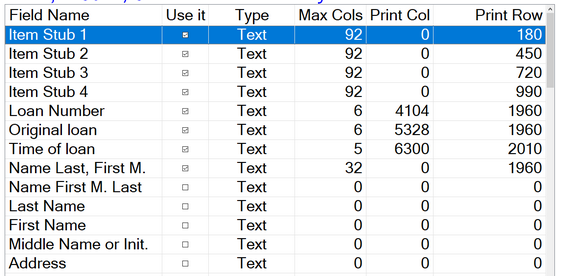
For each field there is a “Use it” option. That is because sometimes there are multiple ways to print a field. For example, the name field can be printed combined and individually. In the example above the name will print in the order last name, first name, middle initial. There is a maximum of 32 characters that may be printed, a long name will be cut at 32 characters. It will print in column 0 (far left of ticket, offset by XORIGIN ). It will print vertically down the ticket at 1960 TWIPS, or about 1 and 3/8 down the ticket. 1960/1440= 1.36 inches. Note that Loan Number, Original Loan, and Name all print on the same line.
31. Tickets without preprinted numbers
Some jurisdictions are now allowing pawn stores to print the ticket numbers on the form. Reply either Y=Yes, or N=No.